Certificates
Flow certificate version 2.0 enables you to issue certificates to your attendees as soon as a webinar concludes. With the new update, you can,
- Use Templates
- Code (CSS/HTML) or edit the certificate visually, with placeholders
- Add images
- Use multiple parameters - criterion
- Attentiveness
- Popup clicks (attendance checking polls)
- Duration
- 1, 2, or all parameters together to create a complex criterion to issue certificates
- View reports (verification)
- Resend certificates manually
You cannot edit the email that we send with the certificate at this point. It is also not available for online viewing.
Configuring the Template
You have to configure the certificate template to use with your event or the webinar room (it is not available for the meeting product).
- Log into Flow admin dashboard
- Click on your profile image at the upper right
- Click "Account"
- Enable the certificate template
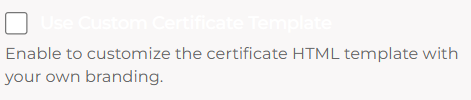
If you have already enabled it, you can edit the template here (or view it)
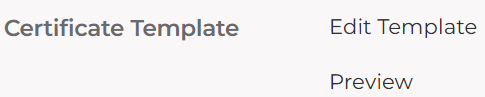
Editing the Template
Preview
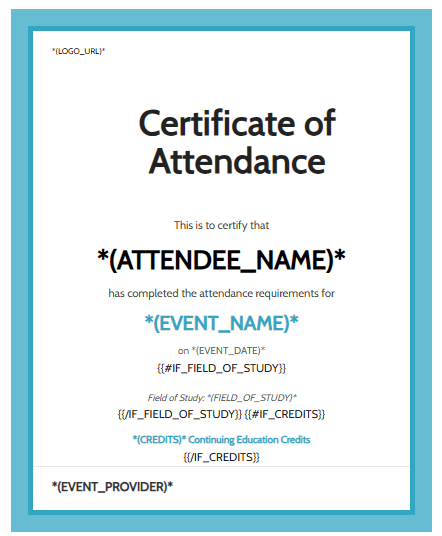
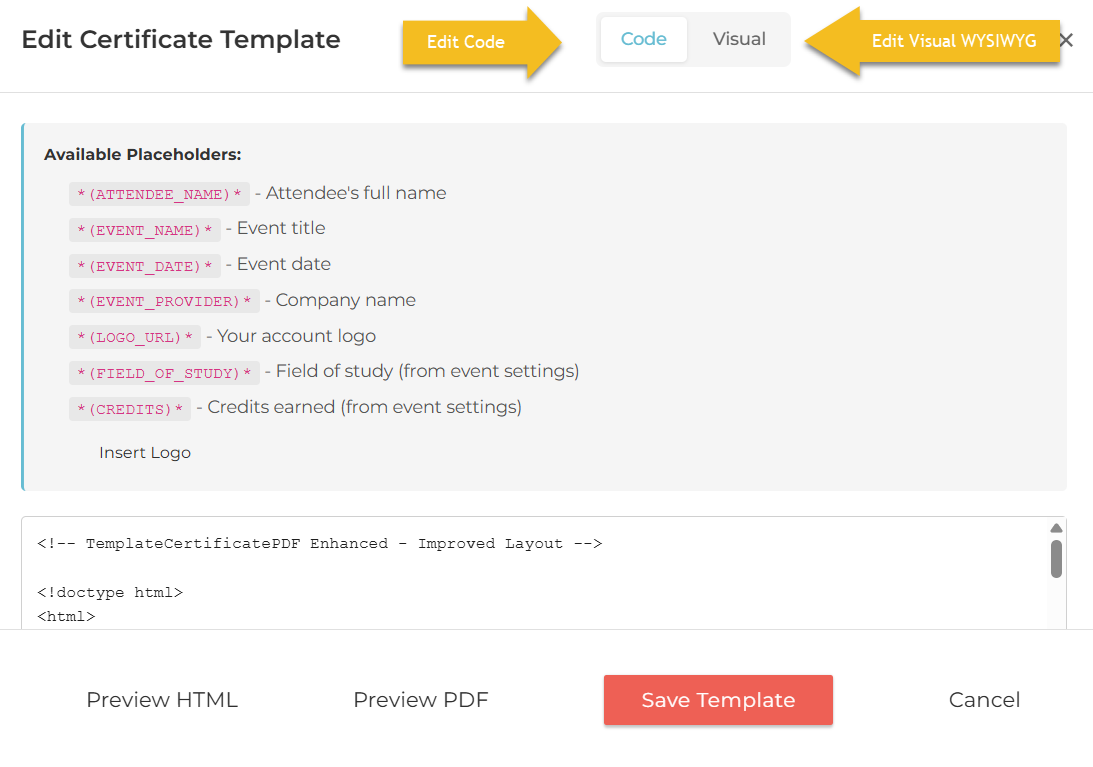
With the edit tool, you can edit the certificate with CSS/HTML code (copy and paste your existing design) or use the built-in tools to create one from scratch.
- You can use placeholders or type the sections (text) directly in the WYSIWYG editor.
- Change the code structure to change the design, and view it in the visual tab.
- Once it is created, preview the PDF file.
- Save the template when finished (it automatically saves your edits).
There are no drag-and-drop tools in this version (coming soon)...
Adding the Certificate to the Event
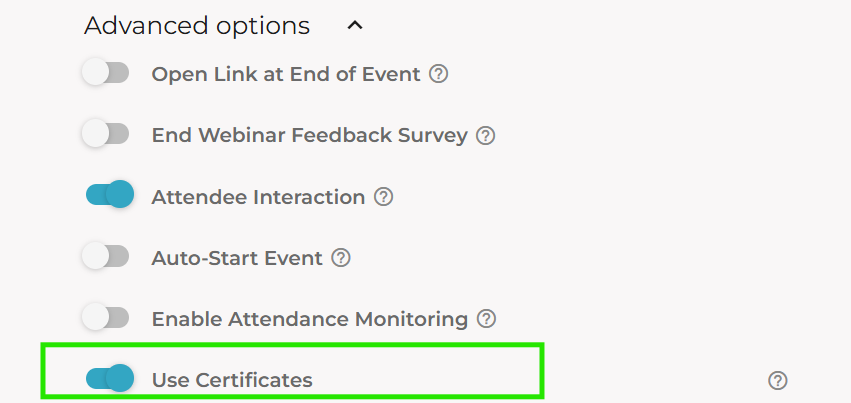
The following parameters can be used...
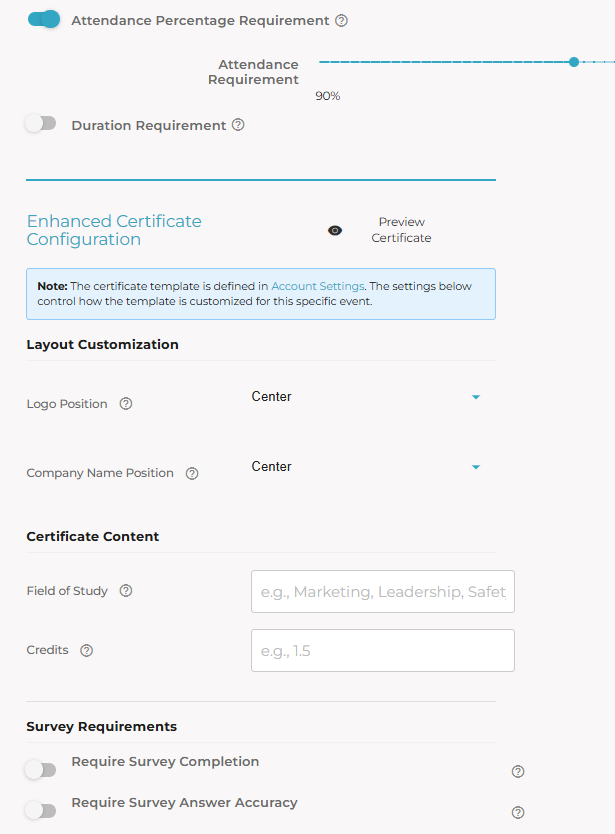
- Attendance Percentage: The time an attendee stays on the ACTIVE Browser Tab
- Duration: From 30 minutes to 8 hours
- Logo Position: Left/Center/Right
- Company Name Position: Same as above (you can use an image)
- Certificate Content
- Field of Study: The subject area of the event (i.e., Accounting)
- Credits: CPE/CPD credits offered (or any other credits)
- Survey Requirement
- Require Survey Completion: How many surveys are required to be completed, and what the maximum completion requirement is
- Require Survey Answer Accuracy: Survey answers according to the appearance of the surveys (indexed).
Event Report and Sending it Manually
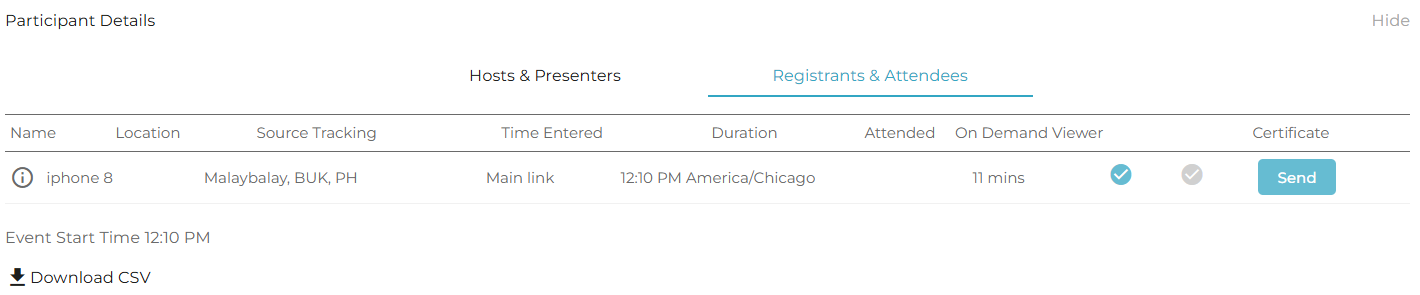
From the event reports, you can view if the certificate has been sent or send it manually (press the Send button). Download the CSV report to see more details on how the attendee stats are matched with the criteria.