
Room Layout and Controls
Watch and Learn
Guide for Attendees
Note: If you have watched the YouTube video, this is the same guide in text.
Flow is compatible with Any Web Browser, even the browsers on Mobile Devices. We are not recommending the following browsers.
- Brave
- Duckduckgo
- Tor
- Norton
- Comodo
- Maxthon
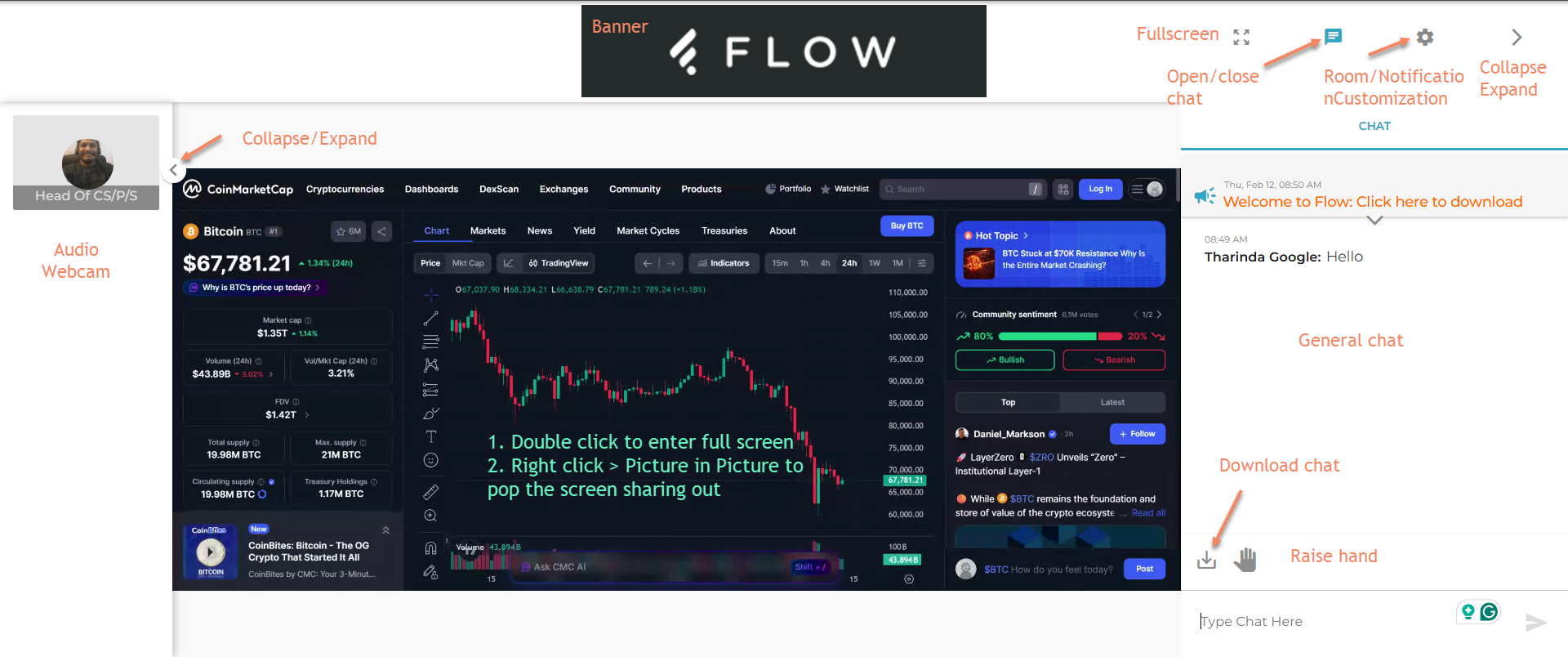
Webinar room controls are shown as shown in the above image (screenshot). Flow room is a simple browser-based interface without any complicated options or features. We designed Flow to be simple and efficient.
- FLOW banner/logo at the top — Branding for the "Flow" platform/room itself
Your Tools
 Fullscreen button → Toggles between normal view and full-screen mode for a larger experience.
 Chat/Speech Bubble → Opens/closes the panel on the right side.
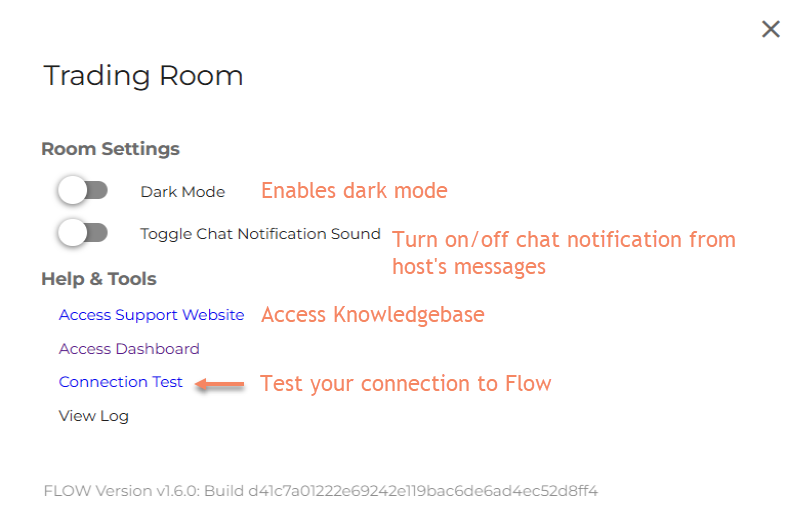
 Gear/Settings Button → Access to room settings, notifications, customization options

 Collapse/Expand arrows (top bar and user avatar area) — Collapses or expands the host icons or the chat panel on the right, giving more space to the main deck (charts, for example).
- General Chat — Live messages from users. The time stamp is localized for you according to your timezone.
- Announcements are at the top of the same panel.
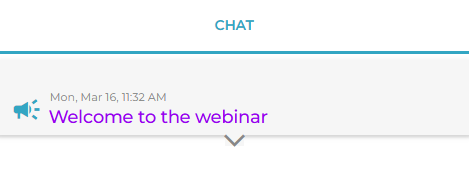
- Download chat indicator — For downloading/uploading chat history or related files (appears with an arrow pointing to it).
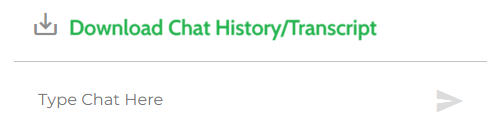
- Announcements are at the top of the same panel.
- Raise hand icon (hand raise) — This is only available when Q&A module is enabled. It allows users to request to speak, raise a question, or get attention
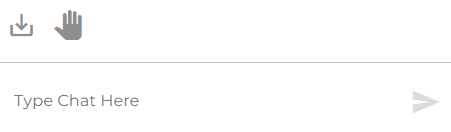
- Audio/Webcam Indicators (Upper Left) — Shows active microphone/webcam (likely for voice chat, live audio discussions, or video participation in the room).
- Type Chat Here input box — Where you type and send messages; includes a send button. To send a message, you can just hit the Enter/Return key in your keyboard to send the message.
Screen Sharing Tools
- Full-screen View: Just double-click or tap on your screen
- Detach Screen Sharing: Right-click anywhere in the middle of the charts > Picture-in-picture
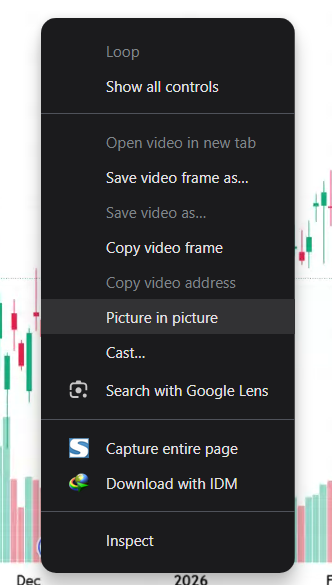
Result >>> You can take it somewhere else, and scale it, and interact with it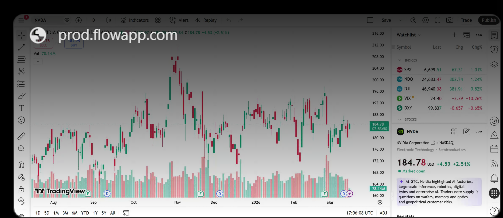
You can collapse the hosts' and chat sections on the right and left. The screen sharing can be zoomed (double click) or right click > picture-in-picture to pop it out and dock it somewhere else.
Room Customization
Click the gear/wheel button in the upper right section to set up these options for you. These options are self-explanatory.
Troubleshooting
Frequently asked questions and answers - Click here to troubleshoot
Click the browser's close button to exit - there is no exit button like on Webinato (this option will be there soon!)