
Please follow this guide carefully if you can't load the webinar room (it gets stuck at the Webinato logo).
On Windows
Step 1:
Watch the Video Guide and Follow (the text below guide shows the same steps)
Note: You do not have to follow the guide below if the steps in the video worked!
- Exit the Webinato application
- Open the following link in Windows Explorer (Windows Explorer is the file viewer on Windows. If you cannot find it, click Start Menu and search for Windows Explorer)
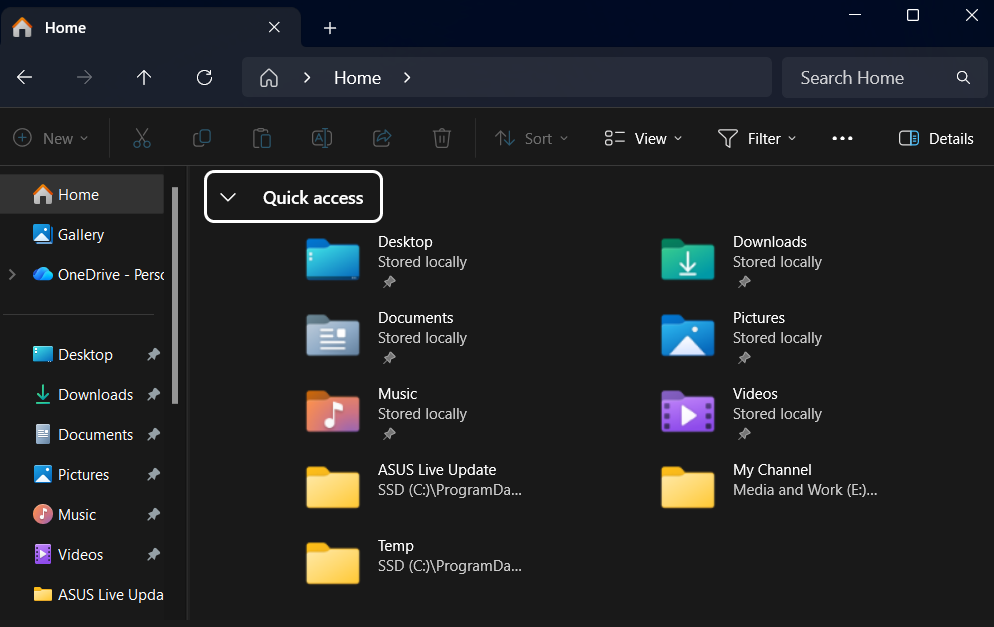
- At the top textbox, type %appdata% and press the enter key on your keyboard
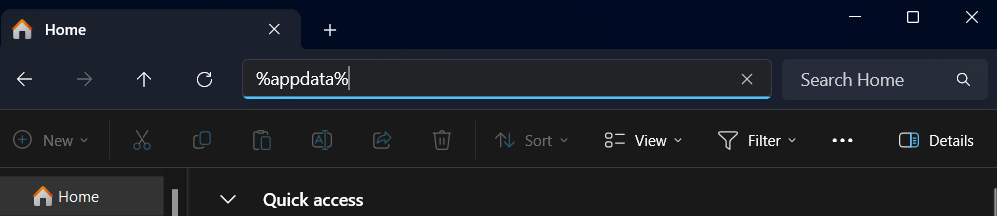
- Now you must be in the folder C:\Users\< Your User Name >\AppData\Roaming
- Find and open the "Webinato" folder (you must be in the folder to follow the next step)
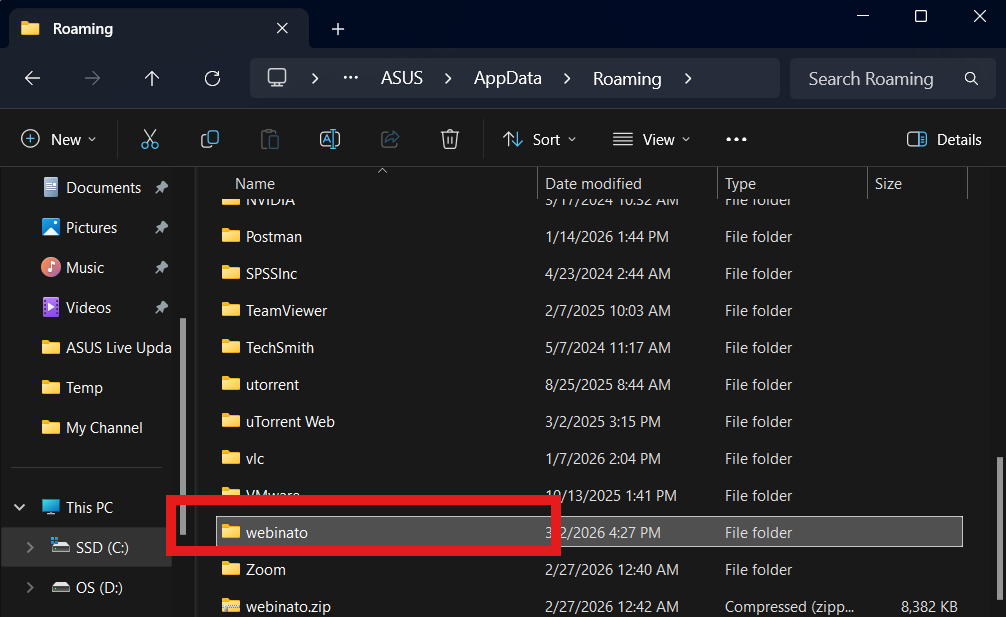
- Delete all the content in this folder
- Close the File Viewer now
- Now, try accessing the Webinato webinar room.
On Mac
Watch the Video Guide and Follow (the text below guide shows the same steps, and you DON'T have to follow it if you fix this by following the video).
- Uninstall the Webinato application
- Remove the /Users/<user>/Library/Application Support/Webinato/ folder
- Reinstall Webinato from https://github.com/Webinato/WebinatoMacInstaller/releases/download/v1.1.7/WebinatoMacSetup.dmg
- If someone can't resolve it, please reach out to the technical support team (create a ticket).
Contact Support:
- Please install AnyDesk https://anydesk.com/en OR TeamViewer https://www.teamviewer.com/apac/solutions/use-cases/quicksupport/ so that one of our support agents can remotely log in and resolve the issue. For Mac users, we recommend TeamViewer
Note: These are remote access/support tools, not alternatives to the Webinato application! - Create a ticket and provide us with your AnyDesk ID if you installed AnyDesk
- Accept the invitation so we can remotely fix the issue
- If you installed TeamViewer, provide us with the ID and Password.